In this article:
A recurring mailing goes out automatically on the schedule you choose (daily, weekly or monthly), without you having to recreate it each time. This article explains how to create one, how to manage it once it's active, and how to understand the status of each mailing.
What it's for
- Send a newsletter, a reminder or a summary at regular intervals without reconfiguring a mailing each time.
- Save time on repetitive communications.
- Stay in control: the frequency, time and target groups are always visible, and you can pause or stop the recurrence at any time.
- Add self-updating content, like an RSS feed, to a mailing that goes out regularly (see the RSS feed section below).
Before you start
- Recurring mailings are available with the Plus and Pro plans.
- If you have custom permissions, the Manage mailings permission is required to create and manage recurrences. Without it, you can only view them.
- Prepare your email template, as you would for any mailing.
- Once the recurrence is created, you can no longer change its frequency, days or time. To change them, stop the recurrence and create a new one.
- The send time follows your account's time zone. It can't be changed for an individual mailing. To change it, go to Settings and configurations > Account information, then choose your time zone.
How it works
Creating a recurring mailing is similar to creating a regular mailing. You choose a template, personalize it, then, in the When step of the mailing setup, you select Recurring mailing instead of a specific date.
Each mailing triggered by the recurrence is called an occurrence. Each occurrence:
- is a separate mailing, with its own statistics;
- uses the content of your template at the time of sending;
- targets the groups as they are at that moment (a new subscriber receives the next occurrence, an unsubscribed contact doesn't);
- is identified by your recurrence's name, in the lists and in the statistics.
Available frequencies
| Frequency | What you choose |
|---|---|
| Daily | The send time |
| Weekly | One or more days, and the send time |
| Monthly | Either a day of the month (1 to 31), or a position in the month (first, second, third or last, with a day of the week), and the send time |
The first mailing goes out on the next date that matches your schedule. Nothing is sent immediately when you create the recurrence.
Recurrence statuses
- Active: occurrences go out according to the schedule.
- Paused: no new occurrences are scheduled. You can resume it at any time.
- Ended: the recurrence has been permanently stopped. Its history remains available on its detail page.
See Manage your recurrences >
Step by step
Create a recurring mailing
- In the Mailings menu, click New mailing, choose your template and personalize it as usual.
- In step 1 of the mailing setup, in the Your email section, check the subject and preview text. If your template contains an RSS block, also choose what should happen if a block is empty.
- In step 2, in the To whom section, select the target groups.
In step 3, in the When section, click the Recurring mailing card.
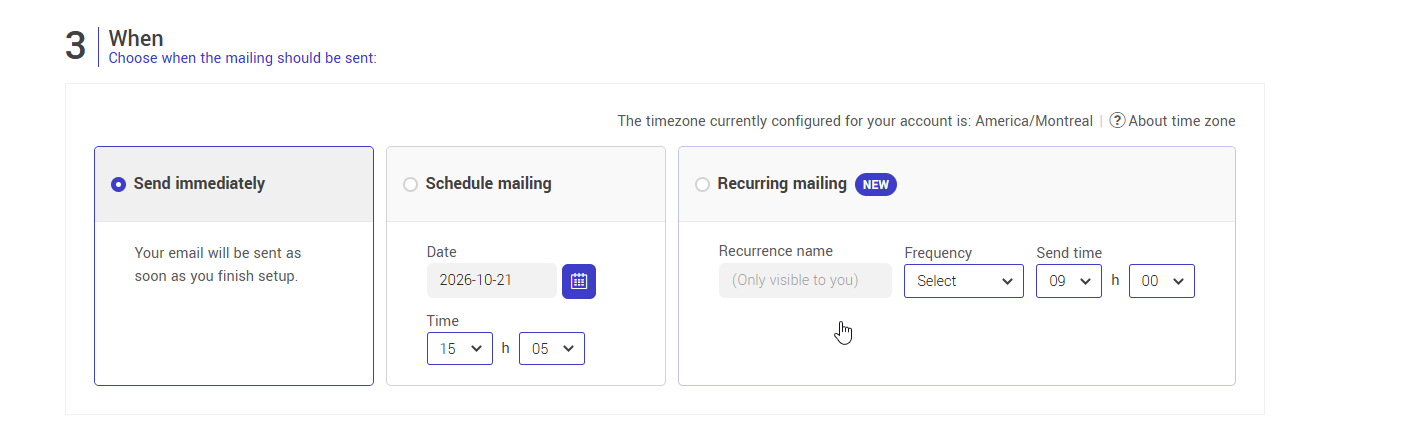
- Enter the Recurrence name (30 characters maximum). This name is only visible to you. It must be filled in to continue.
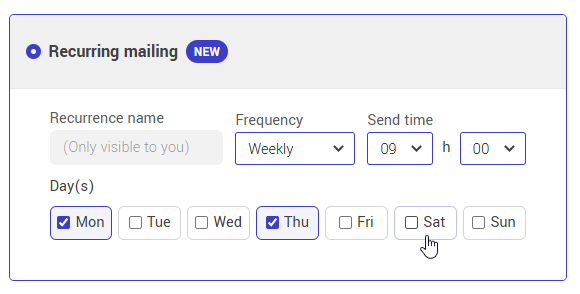
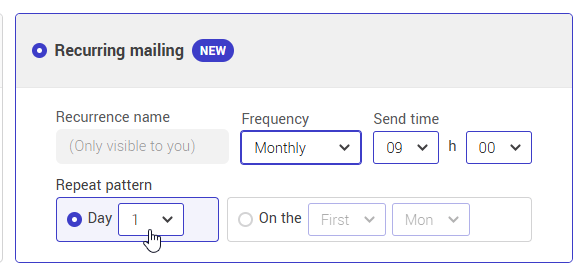
- Choose the Frequency: Daily, Weekly or Monthly.
- Depending on the frequency you chose:
- Weekly: check one or more days of the week
Monthly: choose Day and a number from 1 to 31, or The and a position (first, second, third, last) followed by a day of the week.
- Weekly: check one or more days of the week
- Choose the Send time.
- Complete the From whom, Email footer and Tracking and statistics sections, then click Next.
- In the confirmation pop-up, review the summary (subject, sender, target groups, scheduling and link check), then click Confirm.
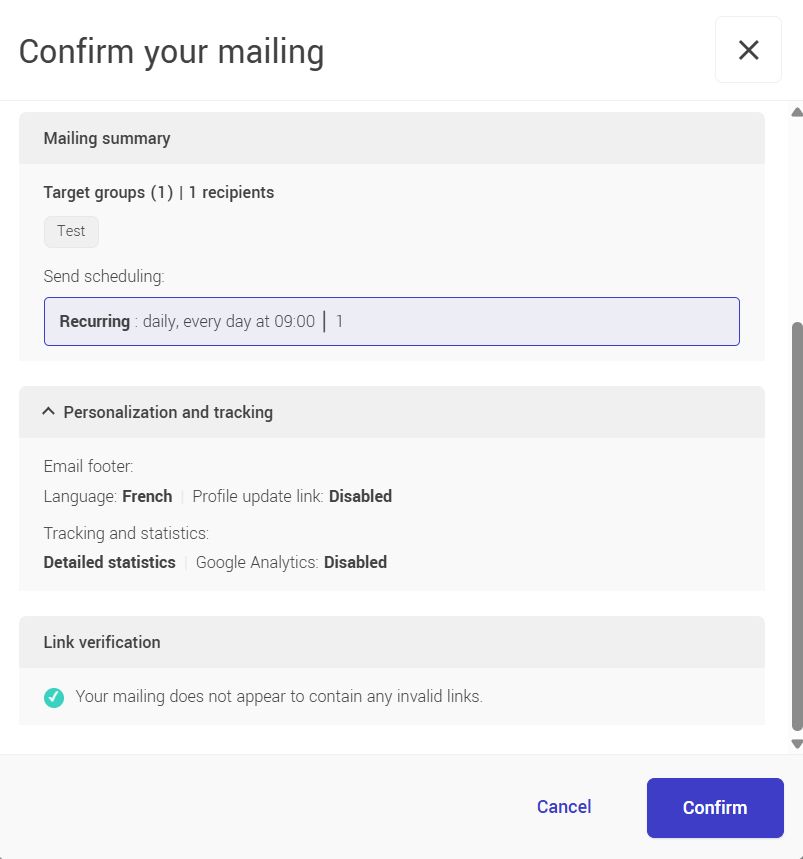
Your recurrence is now active. Its next mailing appears in your Dashboard and in the Scheduled mailings tab.
Manage your recurrences
- In the Mailings menu, click the Recurring mailings tab.
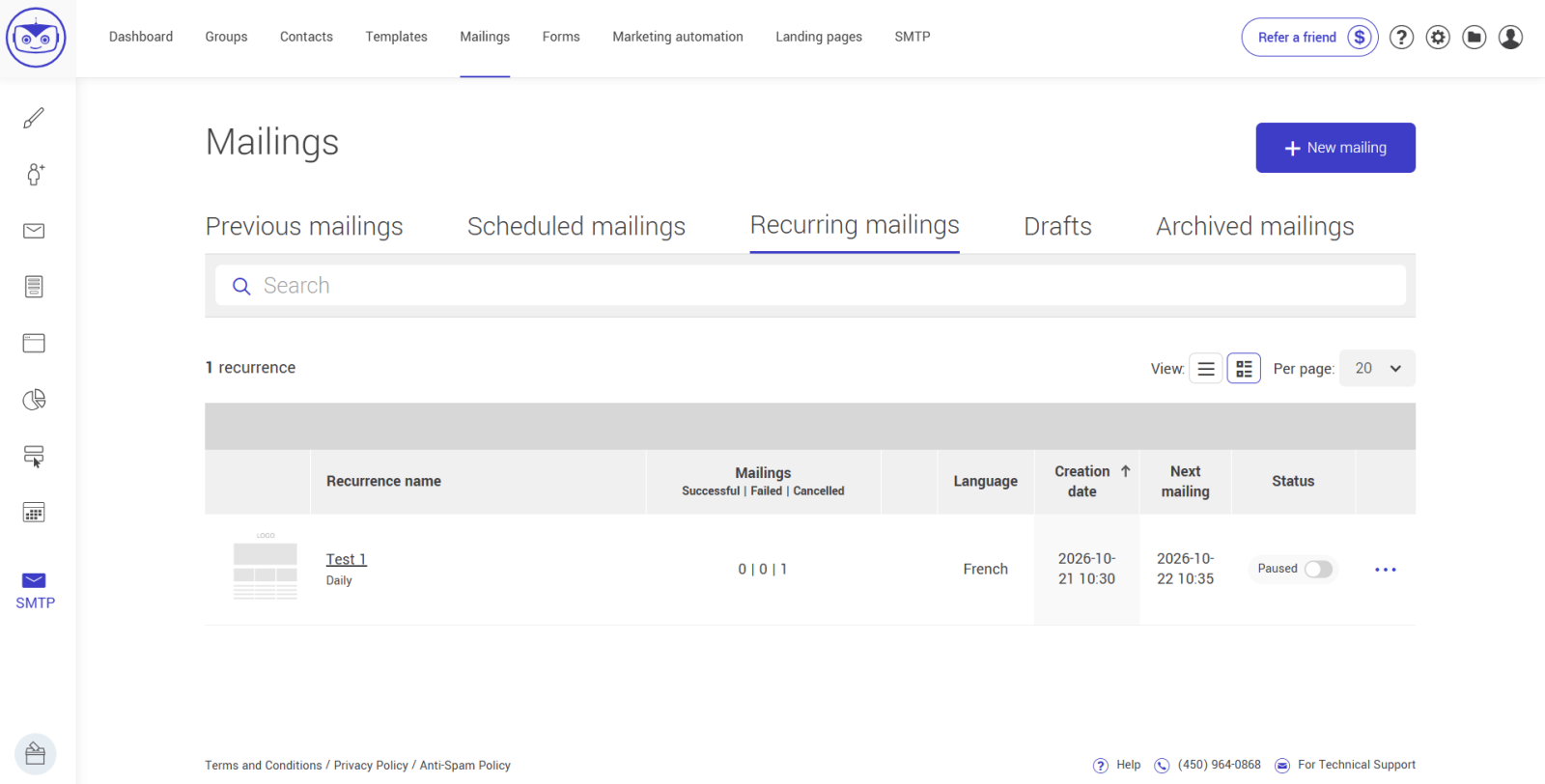
- For each recurrence, you can see the number of successful, failed and cancelled mailings, the date of the next mailing and its status.
- Click a recurrence's name to open its detail page and see all of its occurrences with their status.
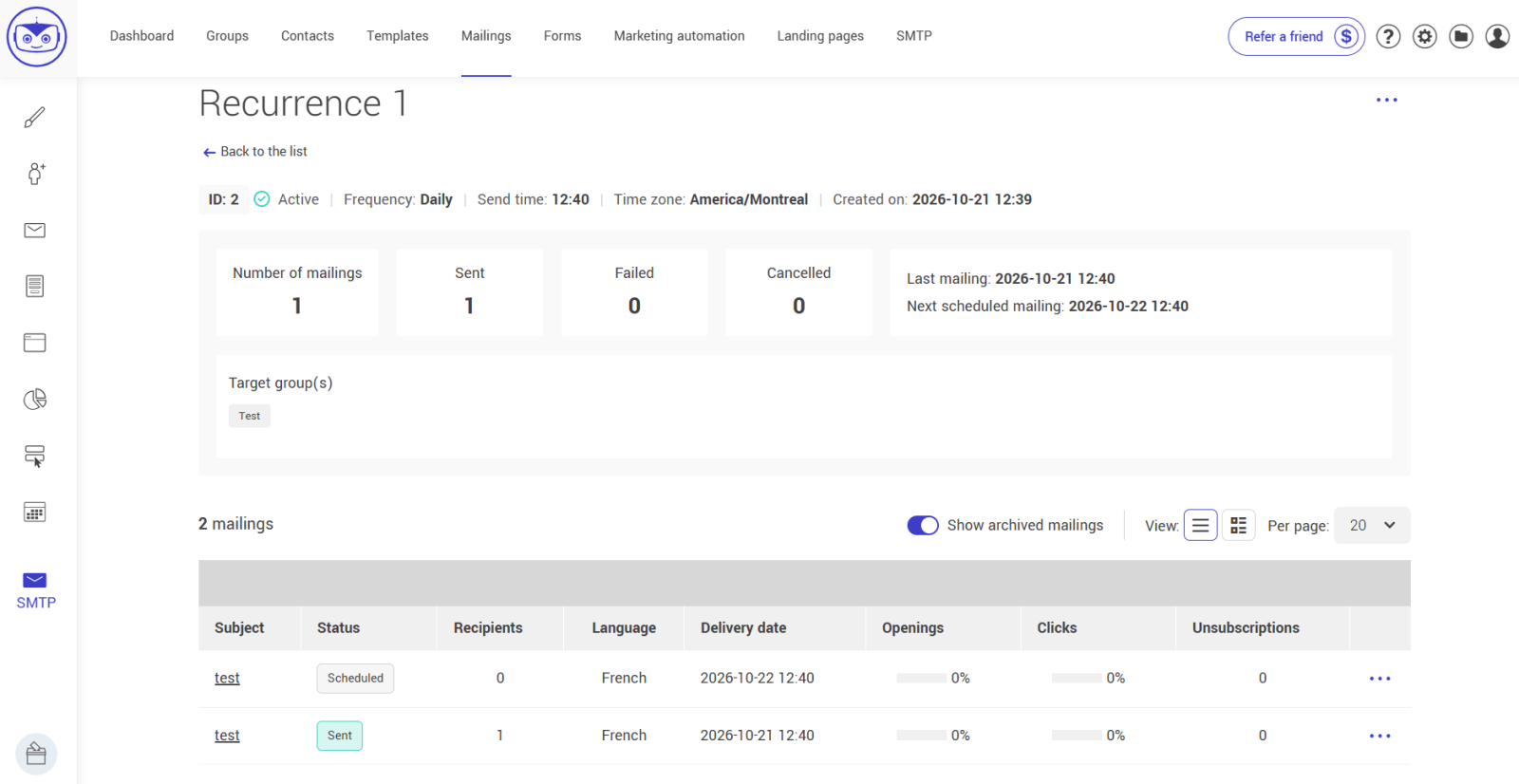
- Click a recurrence's three-dot menu to access the actions:
- View target groups
- Rename
- View recurrence
- Pause (or Resume if it's paused)
- Stop permanently
You can also pause or resume a recurrence with the toggle in the Status column.
Cancel a single occurrence
- In the Dashboard or in the Scheduled mailings tab, click the three-dot menu of the mailing in question.
- Click Cancel this mailing.
In the pop-up that opens, click Cancel mailing to confirm (or No to go back). Only this occurrence is canceled: the recurrence continues, and the next one will go out on its scheduled date. The canceled occurrence is saved as a draft, which you can find on the recurrence’s detail page.
To stop the recurrence entirely, go to the Recurring mailings tab and use the Stop permanently action.
Use an RSS feed in a recurring mailing
If your template contains an RSS/ATOM feed block, its content is refreshed with every occurrence. Your newsletter updates itself without you having to redo anything. Two things to keep in mind:
- Avoid repeating the same news. In the RSS block's properties, you can show only recently published articles. The filter period doesn't adjust automatically to your frequency: for a weekly mailing, choose "last 7 days" or "1 week" yourself.
- Choose what happens if the feed is empty. In step 1 of the mailing setup, you decide whether the mailing still goes out when an RSS block is empty or inaccessible. By default, the occurrence isn't sent, you receive a warning email, and your template is kept in your drafts.
Learn more about RSS/ATOM feeds >
Tips and tricks
What's the difference between a recurring mailing and a one-time scheduled mailing?
One-time scheduled mailing | Recurring mailing | |
|---|---|---|
Number of mailings | One | One mailing per occurrence, until paused or stopped |
Date and time | A specific date | A frequency (daily, weekly or monthly) and a time |
Changing the schedule | Possible (date and time) | Not possible: stop the recurrence and create a new one |
Where to find it | Scheduled mailings tab | Recurring mailings tab, and the next mailing in Scheduled mailings |
Availability | All plans | Plus and Pro plans |
What do the occurrence statuses mean?
You see these statuses on the recurrence's detail page. Hover over the information icon next to a status to see the exact reason.
| Status | Meaning |
|---|---|
| Scheduled | The occurrence is planned but hasn't started yet. |
| In progress | The mailing has started and isn't finished. |
| Sent | The occurrence was sent successfully. |
| Failed | The mailing was attempted but couldn't be completed. The most common reason is an empty or inaccessible RSS block. |
| Skipped | The mailing wasn't even attempted because of an account-related situation: outstanding payment, blocked mailings or an account waiting for a plan selection. |
| Cancelled | The occurrence was cancelled. The tooltip tells you by whom, and why: manual cancellation, pause or permanent stop of the recurrence. |
In every case, the recurrence stays active (unless you paused or stopped it) and the next occurrence goes out on the scheduled date. A missed occurrence is never resent afterward.
Why doesn't a failed occurrence appear in my previous mailings?
Only occurrences that were actually sent appear in Previous mailings, with their statistics. Failed, Skipped and Cancelled occurrences are found on the recurrence's detail page. Since they weren't sent, they have no statistics.
My recurrence didn't run. What should I do?
First look at the occurrence's status and tooltip on the recurrence's detail page.
The status is "Skipped": the cause is related to your account. You also received a warning email, sent to the account administrators (and to the billing contact if it's a payment issue). A draft of the mailing was created in your drafts.
- Outstanding payment: update your payment information in Settings and configurations > Payment information.
- Blocked mailings: your account's mailings are temporarily blocked, often following an account review. They resume automatically once the situation is resolved. Contact support if you have questions.
Your recurrence isn't deleted. It resumes at the next scheduled occurrence once the situation is resolved.
The status is "Failed": see the next question.
My RSS feed is empty or isn't working. Is this a problem with the platform?
No. The content of an RSS block comes entirely from your feed, which is hosted on your website. If the feed is empty, inaccessible or doesn't follow the RSS/ATOM standards at the time of sending, the platform has nothing to display. Check the following:
- The feed address is valid and publicly accessible.
- The feed contains recent articles with a valid publication date. An article without a date is excluded when the date filter is on.
- If the date filter is on, at least one article was published within the chosen period.
Once the feed is fixed, the next occurrence will use the updated content.
[Link to be added: article on adding an RSS/ATOM feed to a template]
What's the difference between pausing and stopping permanently?
- Pause is reversible. The configuration and history are kept, and no new occurrences are scheduled. The next occurrence that was already scheduled is cancelled. When you resume, you review the recurrence summary before mailings restart.
- Stop permanently is irreversible. The history is kept, but the recurrence can no longer be resumed. It also releases the groups and fields it was using, which the paused status doesn't do.
In both cases, a mailing that is already in progress finishes normally.
What happens if I choose the 29th, 30th or 31st for a monthly mailing?
If that day doesn't exist in the month, the mailing goes out on the last day of the month.
What happens if I change plans?
If your account moves to a plan that no longer includes recurring mailings, all of your active recurrences are paused automatically. They aren't deleted. You can resume them as soon as your account has access again.
Can I edit a recurrence after creating it?
You can rename it. To change the frequency, days, time or groups, stop the recurrence and create a new one. To start from the same email, use Duplicate: the template is copied, but not the recurrence settings. You'll need to choose the frequency and time again.
Where can I find recurrence data in my statistics?
On the statistics page of a mailing that comes from a recurrence, you can see the occurrence number and its status. The statistics export also includes three columns: Recurring mailing, Recurrence name and Occurrence number.
See also
Add a RSS/ATOM feed to your template